
Last updated: June 2026
TL;DR — LinkedNav finds work emails from LinkedIn profiles three ways: enrich contacts on demand in Contacts (single or bulk), auto-enrich inside an outreach campaign after the LinkedIn invite is sent (a Pro feature, emailed from your own mailbox), or enrich automatically when you export to Instantly. All three use enrichment credits, and a credit is charged only when an email is actually found.
Three ways to enrich emails
| Contacts | Campaign (Pro) | Instantly export | |
|---|---|---|---|
| Where | Contacts page | Campaign → Email tab | Integrations → Instantly |
| Trigger | Click Get Email | Automatic, after invite sent | On push to Instantly |
| Best for | Building your database | LinkedIn + email together | Scaling cold email |
A credit is spent only when an email is found — misses are free. New accounts start with 20 enrichment credits. See email enrichment and the LinkedIn email finder.
Method 1 — Enrich a contact in Contacts
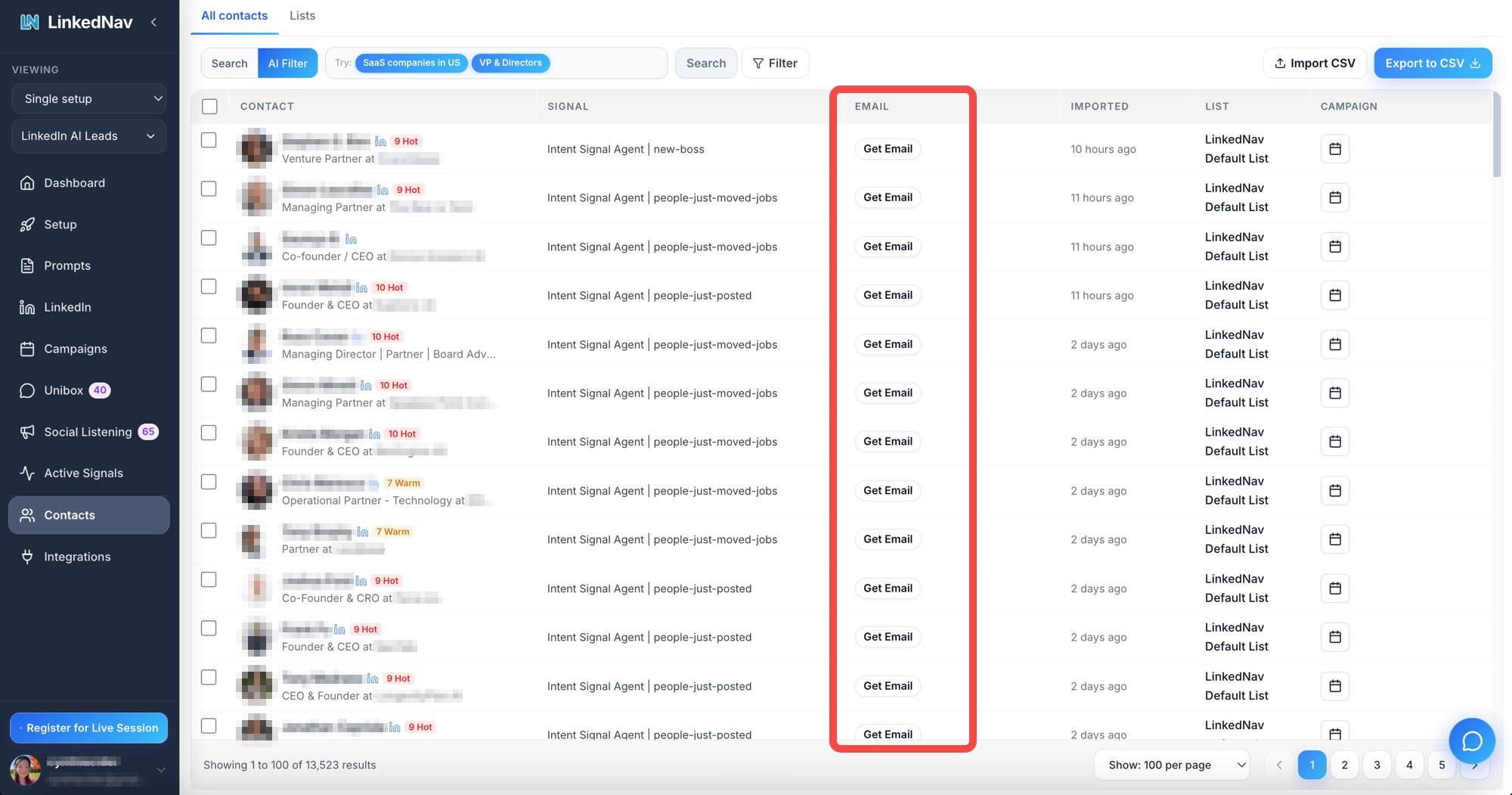
On the Contacts page, click Get Email on a person's row. Enrichment runs in the background and the email saves to that contact automatically.
To do many at once, select contacts and choose Enrich Email — up to 1,000 per batch. This turns a list imported from LinkedIn lead generation or Sales Navigator into an email-ready list in one pass. You can also enable Automatic Email Enrichment so newly added contacts with a LinkedIn URL get queued on their own.
Method 2 — Auto-enrich inside an outreach campaign
In an Outreach Campaign, open the Email tab and turn on Email after invite (a Pro feature). After each LinkedIn invite is sent, LinkedNav finds that lead's email from their LinkedIn URL and emails them from your connected mailbox — a parallel LinkedIn + email touch.
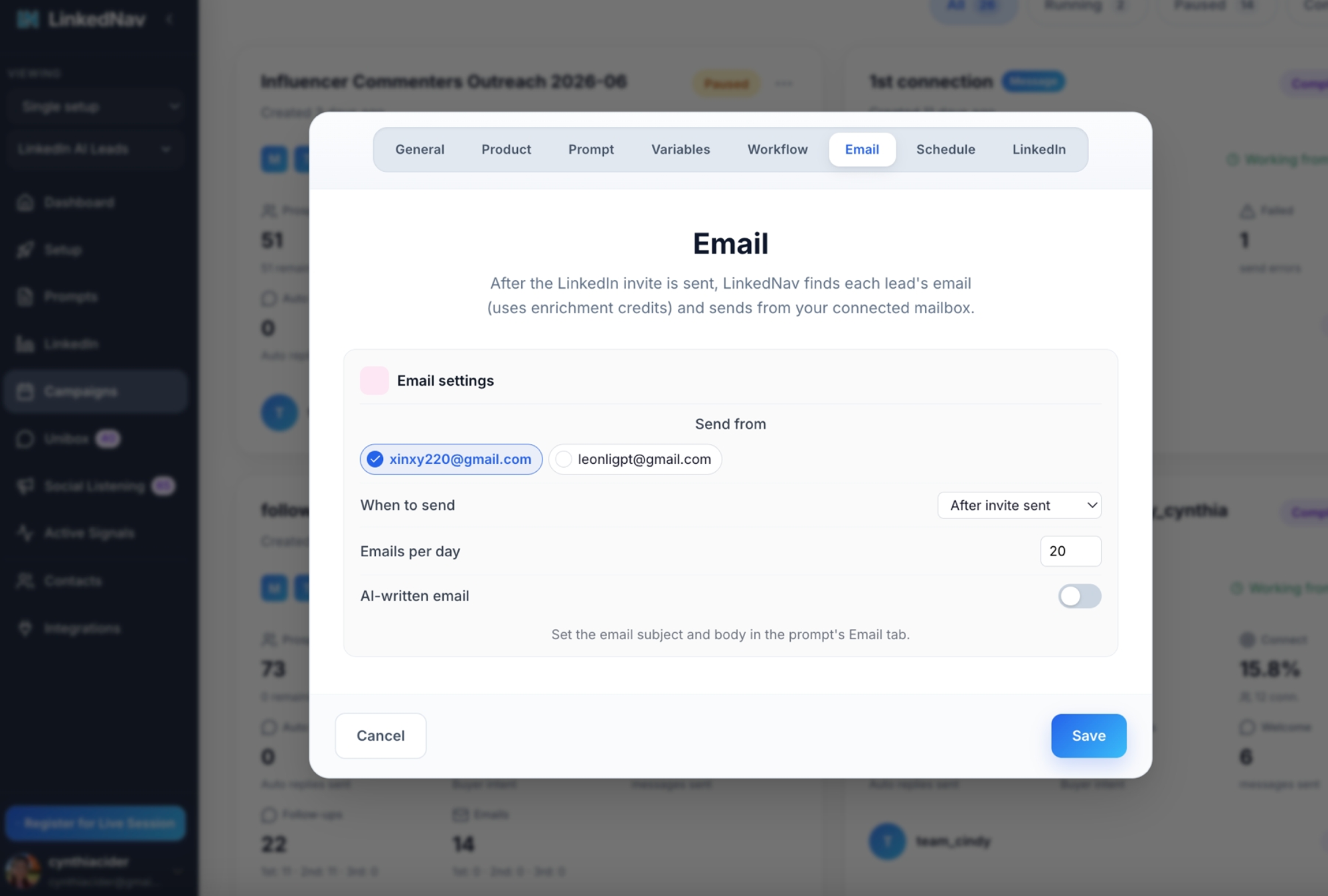
The settings:
| Setting | What it does |
|---|---|
| Send from | Which connected mailbox sends the email |
| When to send | After invite sent (default), after welcome message, or after first follow-up |
| Emails per day | Send cap per mailbox — default 20 (1–500) |
| AI-written email | On = AI drafts per lead; Off (default) = use the subject/body from the prompt's Email tab |
You connect a mailbox in Integrations → Email Accounts first. This is part of LinkedNav's campaign automation and broader sales automation.
Method 3 — Auto-enrich on export to Instantly
If you run cold email in Instantly, install the Instantly integration from the Integrations page. From then on, every contact you push lands in Instantly already enriched — LinkedNav enriches as it exports, with no CSV or separate step.
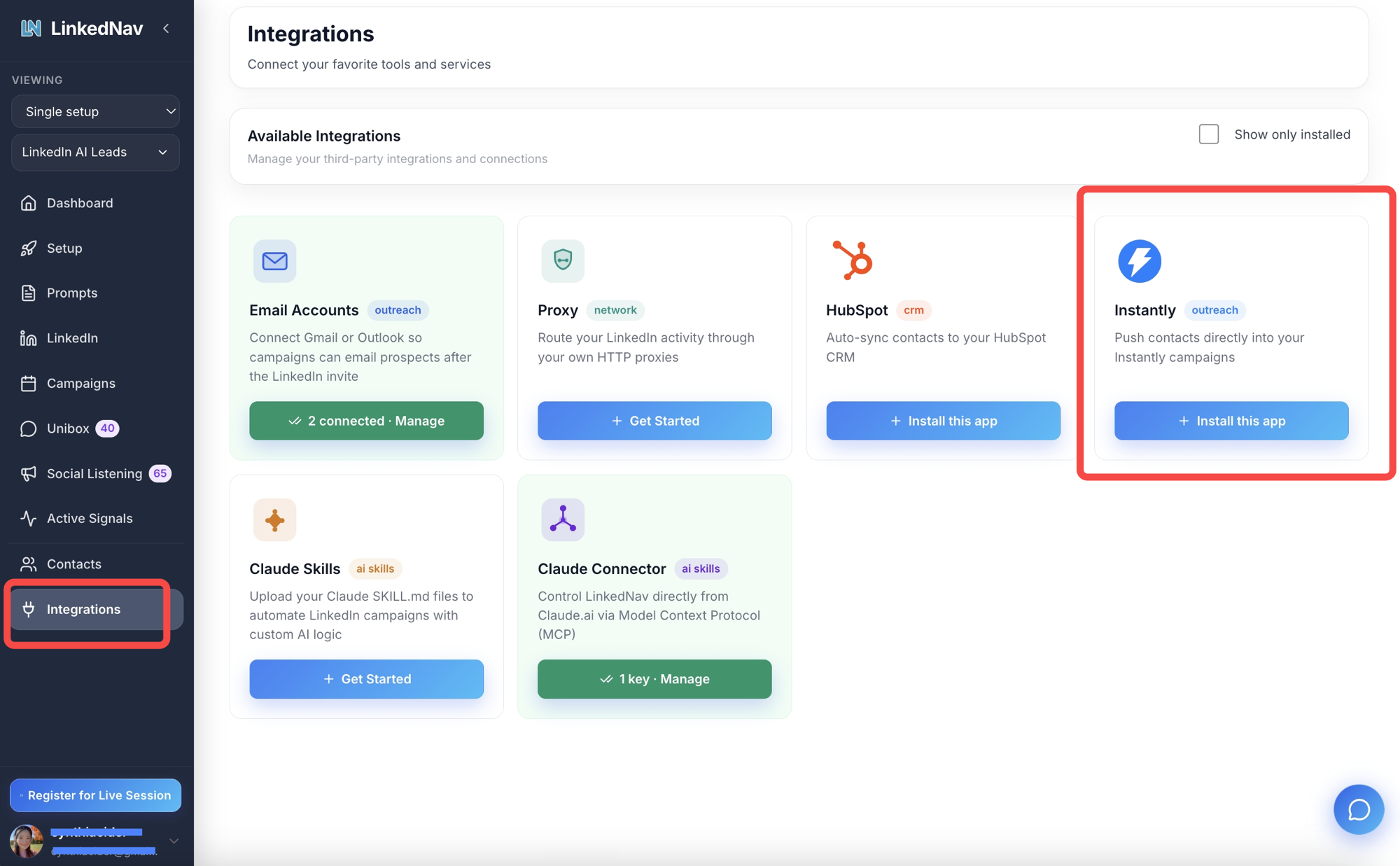
Go to Integrations → Instantly → Install this app and connect your account. See the Instantly integration for setup details. A credit is used only for contacts where an email is found.
Try it free
New accounts start with 20 enrichment credits to test all three methods.
Frequently Asked Questions
What is email enrichment in LinkedNav?
It finds a lead's work email from their LinkedIn profile. You can enrich contacts manually in Contacts, automatically inside an outreach campaign, or on export to Instantly. A credit is used only when an email is found.
How do I enrich a single contact?
On the Contacts page, click Get Email on the person's row. Enrichment runs in the background and the email saves to the contact automatically. To do many at once, select contacts and choose Enrich Email — up to 1,000 per batch.
How does auto-enrich work in a campaign?
In a campaign's Email tab, turn on Email after invite (a Pro feature). After each LinkedIn invite is sent, LinkedNav finds that lead's email from their LinkedIn URL and emails them from your connected mailbox, on your schedule.
Does export to Instantly enrich automatically?
Yes. With the Instantly integration installed, LinkedNav enriches each contact as it pushes them into your Instantly campaigns, so they arrive ready to send with no separate step.
Am I charged when no email is found?
No. A credit is consumed only when an email is found. Misses, and contacts already queued for enrichment, are free.
Can I use enrichment on the free plan?
Yes, for manual lookups — new accounts get 20 enrichment credits to start. Bulk enrichment and hands-off campaign auto-enrich are on the paid plans.
Can the email be written by AI?
Yes. Turn on AI-written email in the Email tab and LinkedNav drafts each message per lead. It's off by default, which uses the subject and body you set in the prompt's Email tab.
When does the campaign send the email?
You choose in the Email tab: after the invite is sent (default), after your welcome message, or after the first follow-up. The default volume is 20 emails per day per mailbox.