
Model Context Protocol
145 outreach tools,
inside your AI assistant.
Connect Claude, Cursor, or any MCP client to your LinkedNav workspace. Find leads, build lists, launch campaigns, enrich contacts, and read your numbers — in plain language, with no dashboard in the way.
https://mcp.linkednav.comIdentical in the web app and the desktop app: no config file and nothing to install. Claude hands you off to LinkedNav’s own authorize page, you paste the key once, and the tools appear in the chat.
- 1
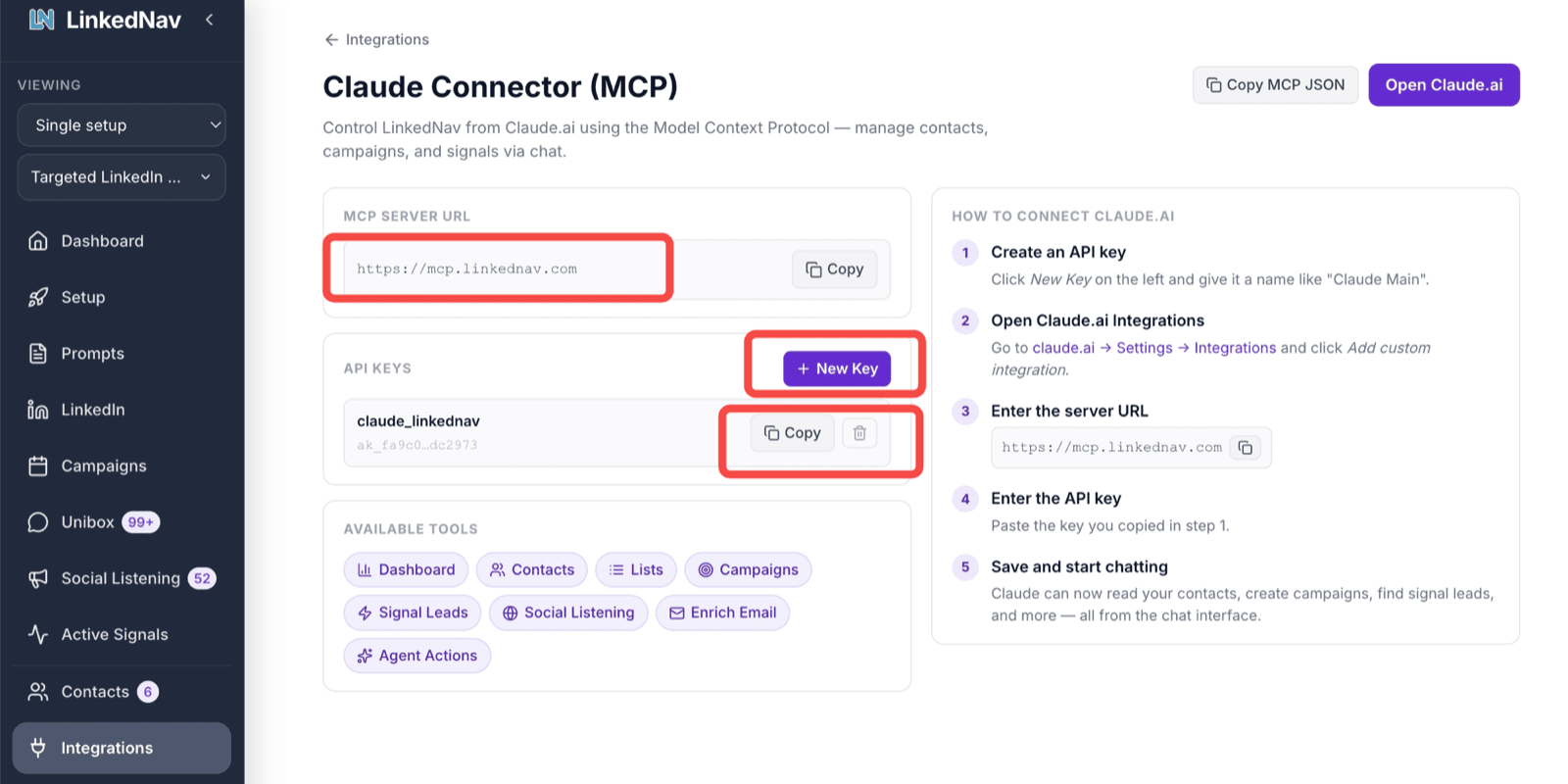
Create an API key in LinkedNav
Integrations → Claude Connector (MCP) → New Key. Copy the key — and note the server URL, you need it in step 3.
- 2
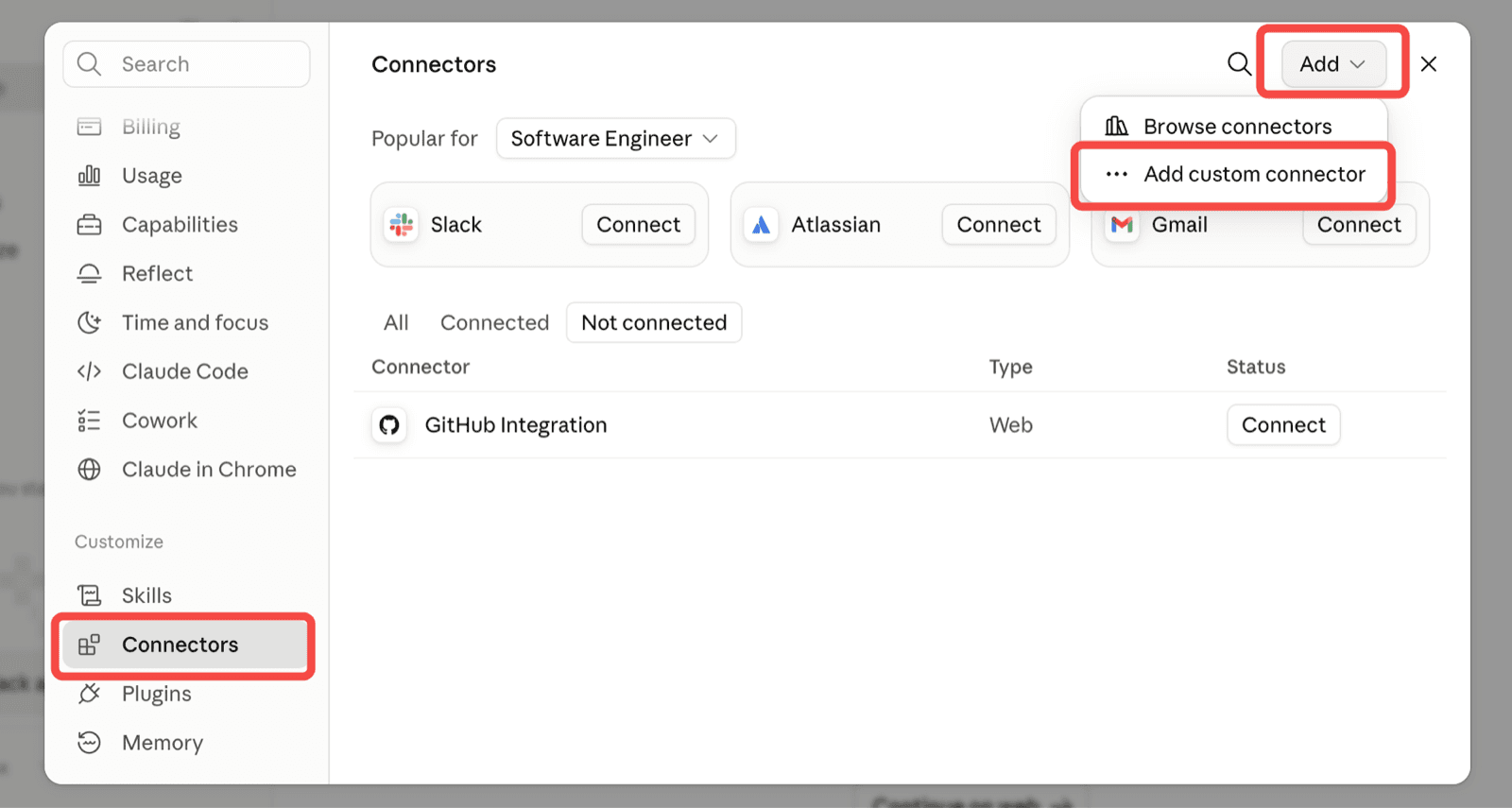
In Claude, open Connectors → Add custom connector
Settings → Connectors, then the Add menu in the top right.
- 3
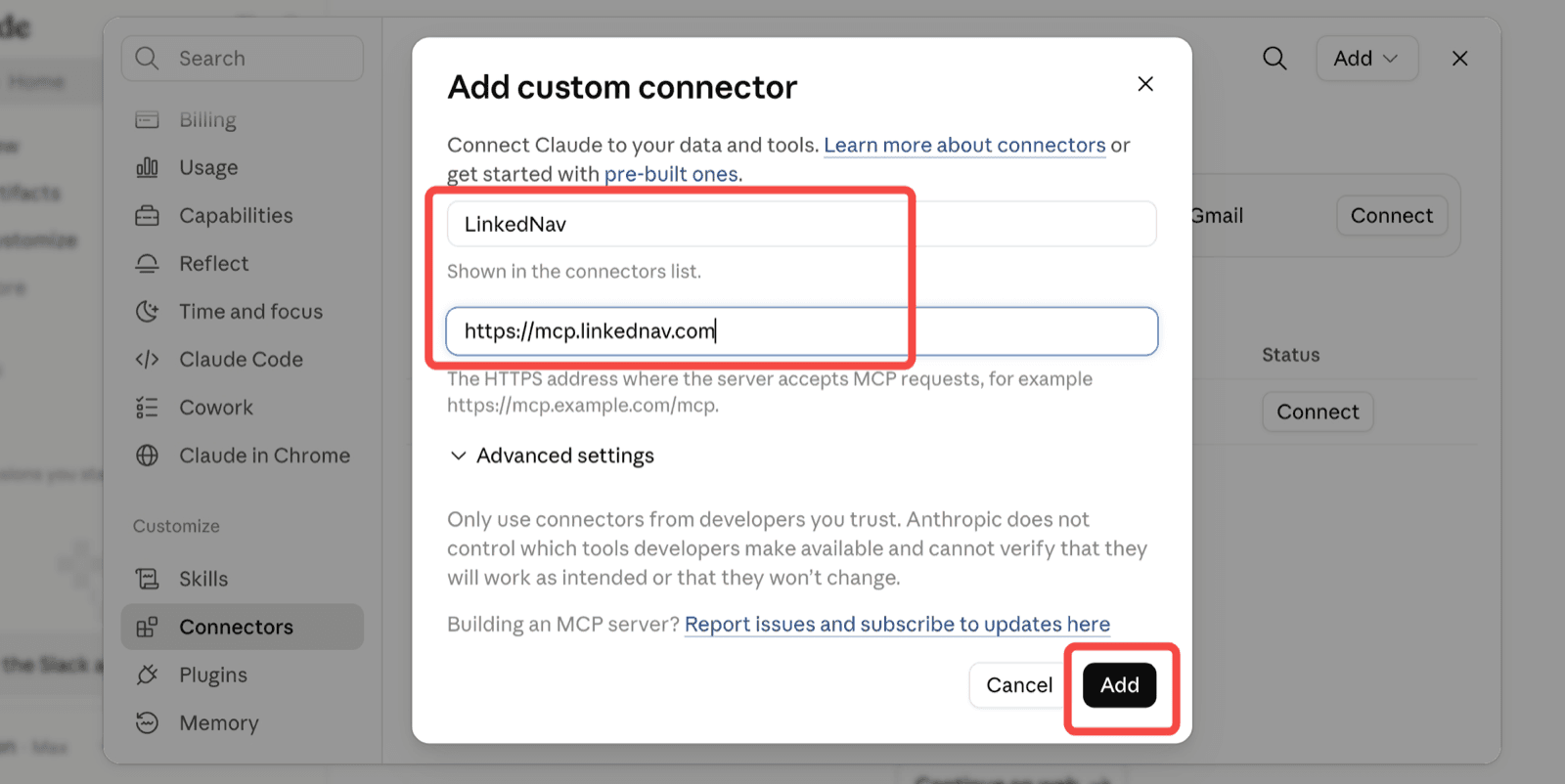
Name it LinkedNav and paste the server URL
Name: LinkedNav. URL: https://mcp.linkednav.com. Leave Advanced settings alone and press Add.
- 4
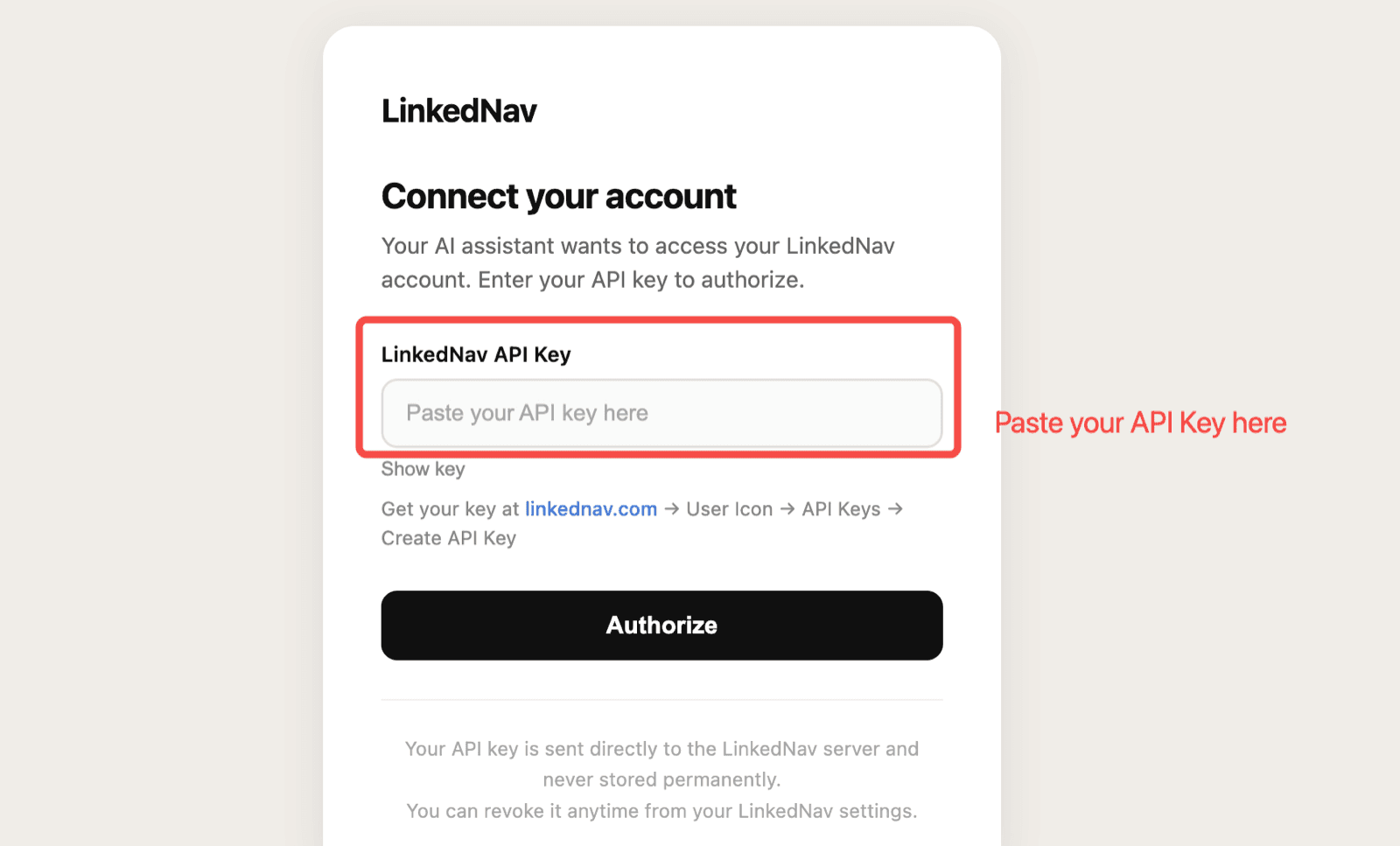
Paste your API key and authorize
LinkedNav’s own authorize page opens. Paste the key from step 1, press Authorize, and Claude comes back connected. Ask it to "audit my whole LinkedNav account" to confirm the tools are live.
Available tools
145 tools. Every outbound workflow.
These are LinkedNav's own tools, in the same groups the Claude Connector screen shows you when you connect. All of them are reachable in natural language — your assistant picks the right one, so there are no parameters to learn and no docs to read.
Dashboard & analysis
6 toolsfull_auditOne prioritized fix plan across delivery, setup, performance, and pipeline.analyze_pipelineRanks the actual people to act on, by conversion likelihood and ICP fit.analyze_performanceFunnel rates judged against benchmarks, with the bottleneck named.
Contacts
7 toolsget_contactsSearch and read the contacts in your workspace.create_leads_bulkPush a batch of LinkedIn profiles in as contacts in one call.update_contactCorrect a record, retag it, or move it between setups.
Lists
4 toolscreate_listBuild the named list a campaign will run against.get_list_contactsRead everyone on a list, with enrichment status.
Campaigns
19 toolscreate_campaignSpin up an outreach campaign and start adding leads to it.activate_campaignValidates sender, prospect count, and plan limits before it starts.diagnose_campaignWhy one will not start, stopped sending, or paused — plus the fix.
Find people & companies
6 toolscount_peopleSize any audience before you spend. Free, exact, at any scale.search_peoplePull matching profiles with title, tenure, and shared-connection signals.find_companiesCompanies by buying signal: hiring, growing, newly funded, new leadership.
Signal leads
12 toolsget_signal_leadsLeads from the intent, competitor, and influencer agents, filtered by score.set_signal_agent_scrape_settingsPer-post liker and commenter caps, and the tracking window.find_influencersDiscover the voices your ICP already follows, then track them.
Social listening
8 toolsget_social_listening_engagersThe people engaging with monitored posts, scored against your ICP.set_social_listening_auto_importTurn qualifying engagers into leads automatically.
Enrich email & phone
10 toolsenrich_contacts_email_bulkVerified emails for up to 20 contacts. One credit only when one is found.enrich_contact_phoneQueue a phone lookup on a contact and read the result back.enrich_linkedin_urlsTurn a batch of raw LinkedIn URLs into full contact records.
Agent actions
8 toolstrack_competitorWatch a company page and collect everyone who engages with its posts.run_intent_agentRun the intent search against your ICP and queue the results.run_influencer_agentSweep the tracked influencers now instead of waiting for the daily run.
Unibox & approvals
19 toolsget_uniboxEvery LinkedIn conversation across senders, with thread history.send_unibox_replyWrite and queue a reply without opening LinkedIn.approve_pending_replyApprove an AI-drafted reply or comment and queue it to send.
AI setup & prompts
11 toolsgenerate_message_templatesDrafts the connect note, first message, and three follow-ups from your setup.update_ai_setupEdit the business context and ICP every campaign is built from.audit_setupScores the setup before launch and names each gap with its fix.
LinkedIn senders
18 toolsget_linkedin_accountsWhich sender accounts are connected, and their health.validate_linkedin_connectionCheck a sender before a campaign leans on it.reconnect_and_check_linkedin_2faReconnect a dropped account and walk through 2FA.
Workspace admin
17 toolsget_tasksEvery queued and running job, with its status and errors.prioritize_campaign_leadsPush up to 500 leads to the front of the invite queue.withdraw_connectionsClear stale pending invites older than a threshold you set.
Just ask
No parameters. Plain English.
Your assistant reads the intent from the prompt and calls the right tool. Every example below is a real request — the tool it lands on is on the right.
- How many VP of Sales are there at US software companies with 50 to 200 people?
count_peoplecounting is free, at any scale - Which companies raised a round in the last 30 days? Get me their founders.
list_funding_signalsfresh rounds, no credits - Everyone who commented on my competitor’s last five posts, into a new list.
track_competitorengagers become leads - Find verified emails for everyone in my SaaS CTOs list.
enrich_contacts_email_bulkcharged only on a hit - Why did my Founders campaign stop sending?
diagnose_campaignthe recorded reason, plus the fix - Who replied and is still waiting on me?
analyze_pipelineranked by conversion likelihood - Rewrite my connection note and follow-ups for this ICP.
generate_message_templatesgrounded in your stored setup - Audit my whole account and tell me what to fix first.
full_auditone merged, prioritized plan
More on the AI side of the platform: the Claude integration, MCP for LinkedIn sales, and every LinkedNav integration.
Want an MCP server for your own LinkedIn account, without campaigns? HeyReagent, from the same team, is a hosted LinkedIn MCP server for Claude, ChatGPT and n8n.
Common questions.
What is MCP?
MCP, the Model Context Protocol, is an open standard that lets AI assistants call external tools directly. Instead of pasting exports into a chat, your assistant calls LinkedNav in real time and gets back structured, live data from your own workspace — then acts on it.
Which AI clients are supported?
Any MCP-compatible client. The server speaks streamable HTTP, so Claude.ai, Claude Desktop, Claude Code, Cursor, VS Code, Windsurf, Cline, and Zed all connect. Config for each is in the section above.
Do I need an API key?
One key, created in LinkedNav under Integrations → MCP. Claude connects by sign-in: you add the server URL, LinkedNav opens its own connect page, you paste the key once and press Allow. File-config clients take the same key as an Authorization: Bearer header. Deleting the key revokes access immediately.
Is it safe to give an AI access to my LinkedIn outreach?
Access is scoped to the one workspace behind that key, and it runs through the same LinkedNav layer the dashboard uses, so the same sending limits and safety rules apply. The assistant never touches your LinkedIn password, your client asks you to confirm before anything sends, and the endpoint is rate limited to 300 requests per minute.
Can I use this in an automated agent workflow?
Yes, and it is a good fit. Anything that speaks MCP works: n8n, Make, custom Claude agents, or your own pipeline. The tools return structured JSON, and the long-running ones (enrichment, agent runs) hand back a task ID you can poll.
Does MCP access cost extra?
No. It is part of the platform rather than a separate add-on, so it comes with your plan. Actions that consume credits in the dashboard, like email enrichment, consume them here too, at the same rate. Search sizing and funding signals stay free.
145 tools. One URL.
Create a key, paste the server URL, and let your assistant do the clicking. Free for 7 days, no credit card required to start.