
Sending connection requests on LinkedIn is a powerful way to grow your professional network. However, doing it manually can be time-consuming, especially when you want to add a personalized note to each invitation. Personalization drastically increases acceptance rates, but typing out unique messages for hundreds of leads is exhausting.
LinkedNav solves this problem by allowing you to automate connection requests with personalized notes. To get started, you simply need to provide two pieces of information from your browser: your User Agent and your li_at cookie. This ensures the automation mimics your real browsing behavior, keeping your account safe.
Prerequisites
Before you start your campaign in LinkedNav, you'll need to gather two items.
1. Get Your User Agent
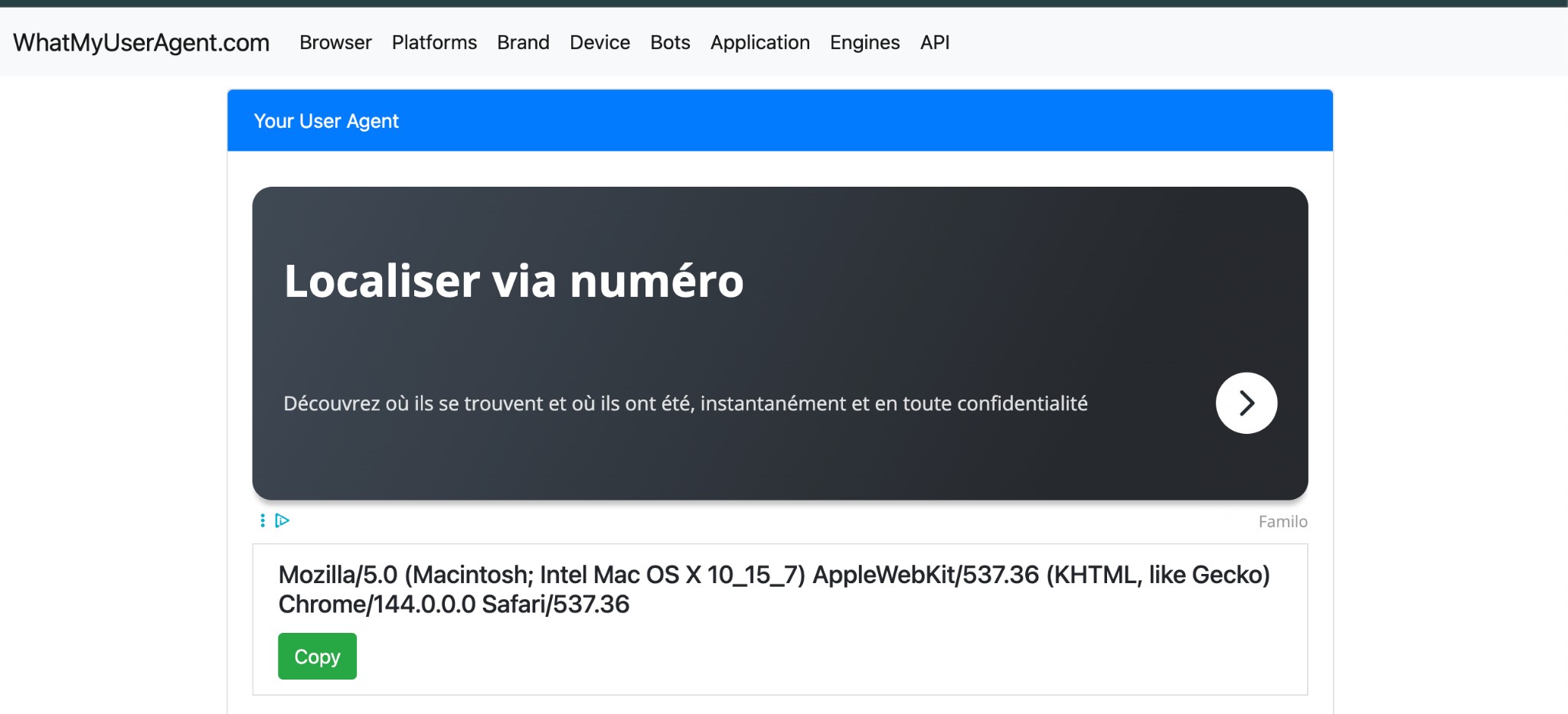
Your User Agent string identifies the browser and operating system you are using. LinkedNav uses this to appear exactly like your computer when communicating with LinkedIn.
Important: If you are connecting multiple LinkedIn accounts, make sure to get the User Agent from the specific browser or profile you normally use to access that LinkedIn account.
- Open the browser you normally use for LinkedIn.
- Go to whatmyuseragent.com.
- You will see a box labeled "Your User Agent". Copy the entire string inside that box.
2. Get Your li_at Cookie
The li_at cookie is your session token. It acts as your "key" to let LinkedNav perform actions on your behalf without needing your password.
- Open LinkedIn in a new tab and make sure you are logged in.
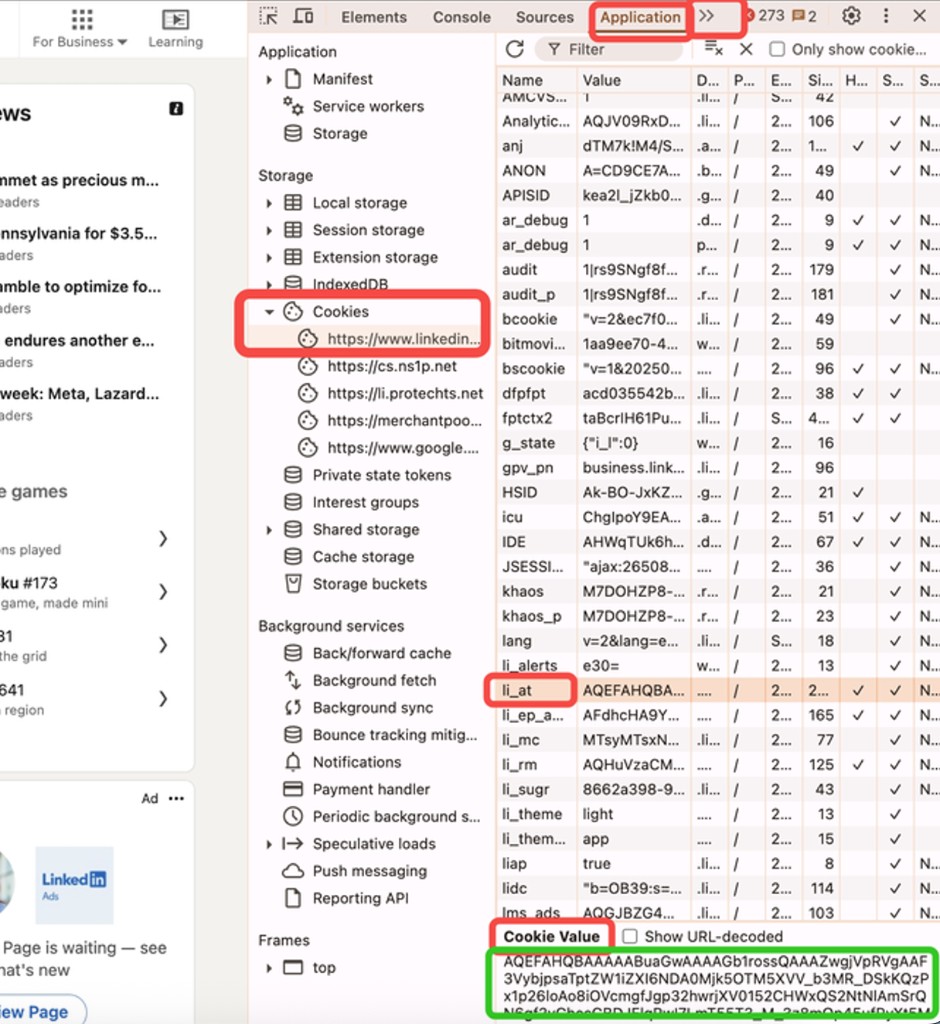
- Right-click anywhere on the page and select Inspect (or press
F12/Cmd+Option+Ion Mac). - In the Developer Tools panel that opens, look for the top menu tabs (Elements, Console, Sources, etc.). Click on the Application tab. (You might need to click the
>>icon if it's hidden). - In the left sidebar, expand the Cookies section and click on
https://www.linkedin.com. - In the list of cookies, find the one named li_at.
- Click on it, and copy the value from the Cookie Value box at the bottom.
Start Automating
Once you have these two pieces of information, head back to your LinkedNav dashboard.
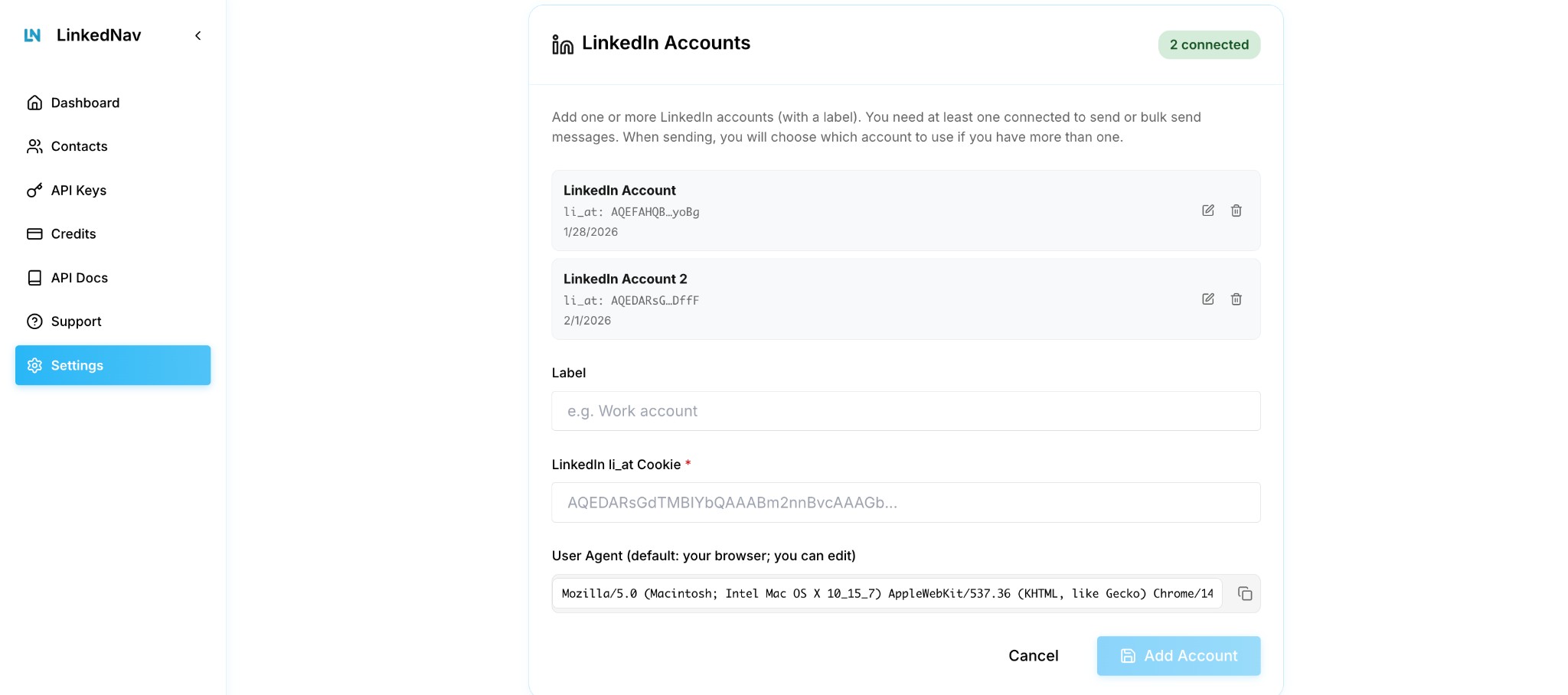
Navigate to the Settings page and look for the LinkedIn Accounts section. Here you can connect one or more LinkedIn accounts.
Simply paste your li_at cookie and User Agent into the respective fields and click "Add Account".
LinkedNav will now be able to send connection requests and personalized notes on your behalf, running in the cloud while you focus on closing deals!
Once your account is connected, here is what most teams set up next.